
How to Install and Set Up CDEF App iOS
Follow the step-by-step instructions below to successfully install and set up the CDEF App on your phone.
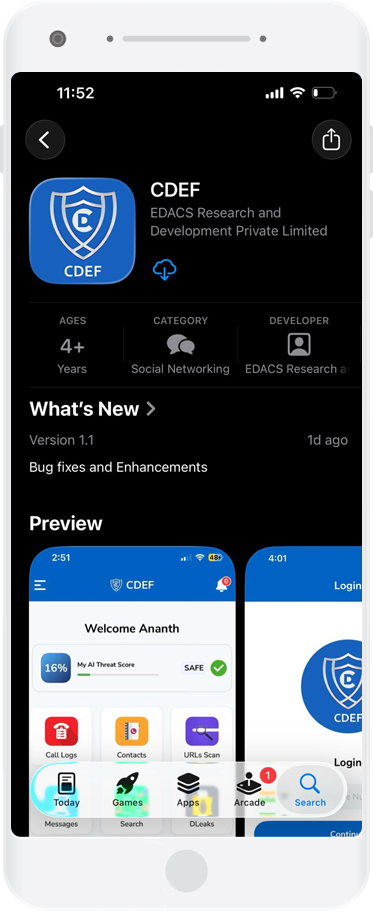
Open the App Store on your mobile phone.
In the search bar type CDEF App and select the app from the search results.
Tap on Install to begin downloading the application.
Once the installation is complete, the app icon will appear on your device.
Tap on the CDEF App icon to launch the application. On the welcome screen, read the terms and conditions carefully.
Tap on “Agree & Continue” to proceed, followed by Submit to move to the next step.
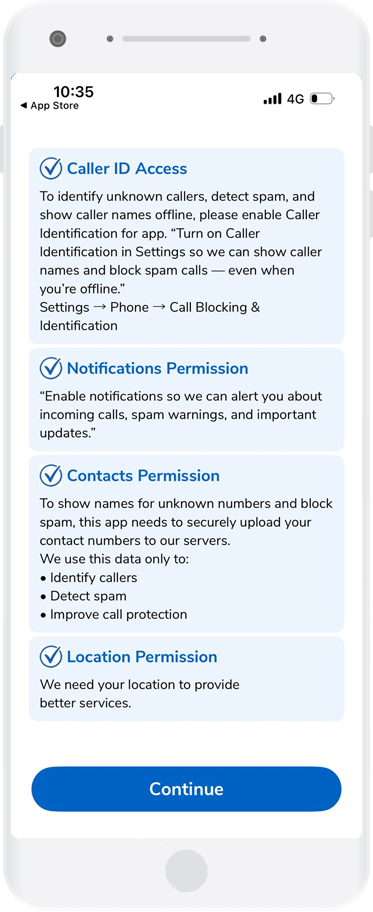
The app will request access to certain permissions such as:
- Caller ID Access
- Notifications Permission
- Contact Permission
- Location Permission
Enable Caller ID & Required Permissions (iOS)
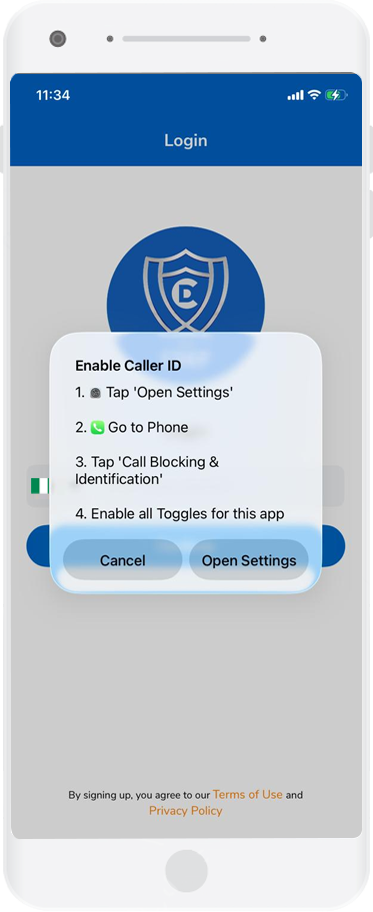
Before completing your profile, this popup will appear on the login screen. It is important to enable the following permissions for the app to function correctly:
Caller ID & Call Blocking
- Tap Open Settings from the popup
- You will be redirected to your device settings
- Go to Phone
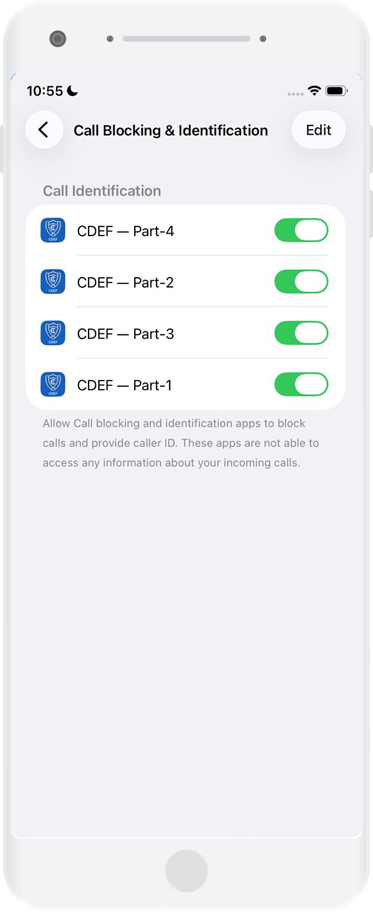
- Tap Call Blocking & Identification
- Enable all toggles for CDEF (Part-1, Part-2, Part-3, Part-4)
- Ensure all options are turned ON for full functionality
Notifications
- The app will request permission to send notifications
- Tap Allow to receive important alerts, updates, and caller information in real time
Tap on Continue and allow each permission as prompted on your screen.
These permissions may appear one by one, and you need to enable each of them individually.
Please note that while the app may function with limited permissions, enabling all permissions ensures full access to features such as caller identification and spam protection.
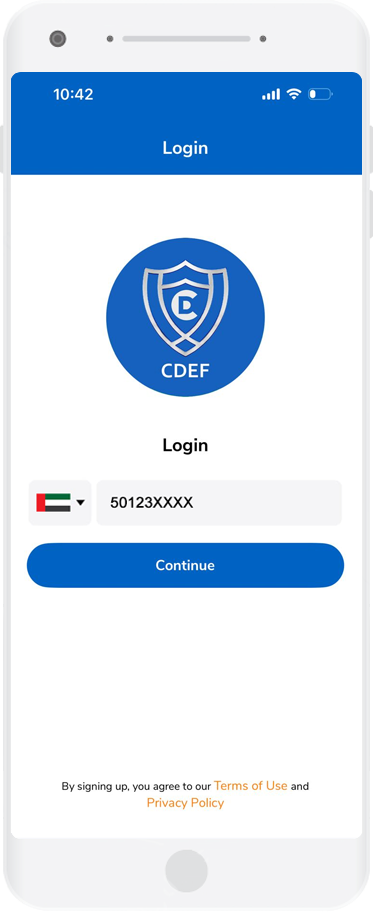
On the login screen, select your Country Code from the list (for example, +971 for UAE).
Enter your mobile number carefully in the space provided.
Once done, tap on Continue to proceed to verification.
After submitting your mobile number, tap on Submit to request an OTP (OneTime Password).
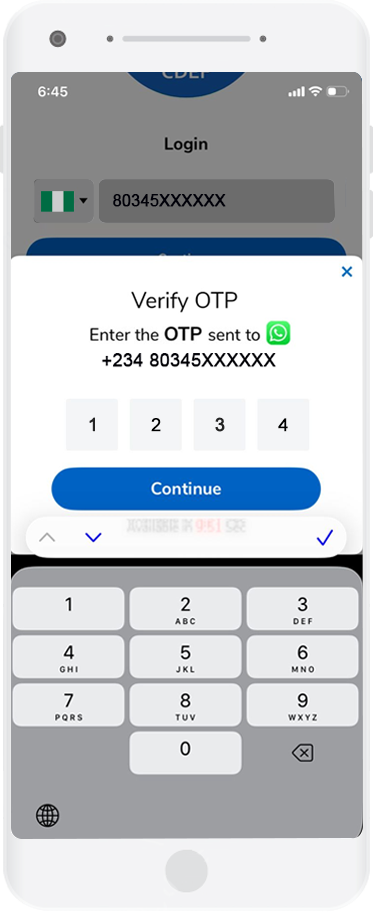
You will receive a four-digit verification code via WhatsApp on your registered mobile number.
Enter the OTP in the required field and tap on Submit.
You can enter it manually.
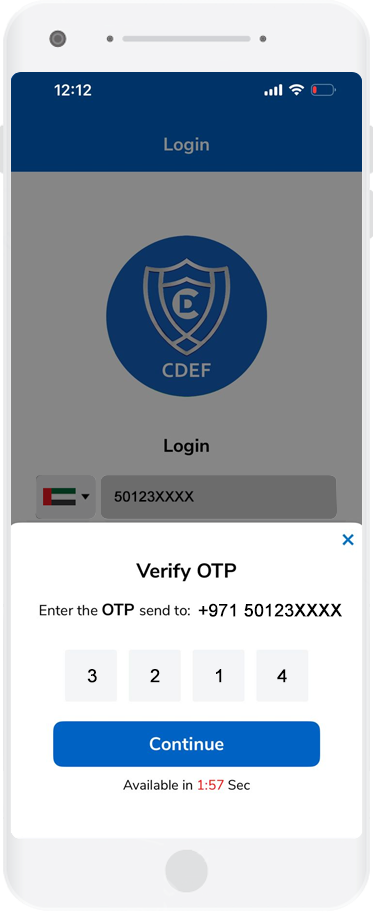
Check OTP Received to WhatsApp
If you do not receive the OTP, you will have the option to request it again by tapping on Resend OTP.
Kindly wait for a few moments before requesting a resend, as SMS delivery may take longer in some regions.
Once the correct OTP is entered, a confirmation message will appear indicating that your number has been successfully verified.
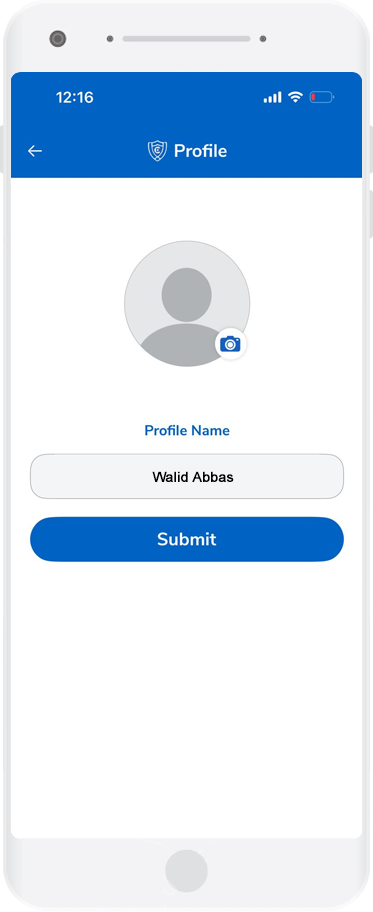
On the next welcome screen, enter your Name in the required field.
You may also upload a profile picture of your choice to personalize your account.
After entering the details, tap on Submit to complete your profile setup.
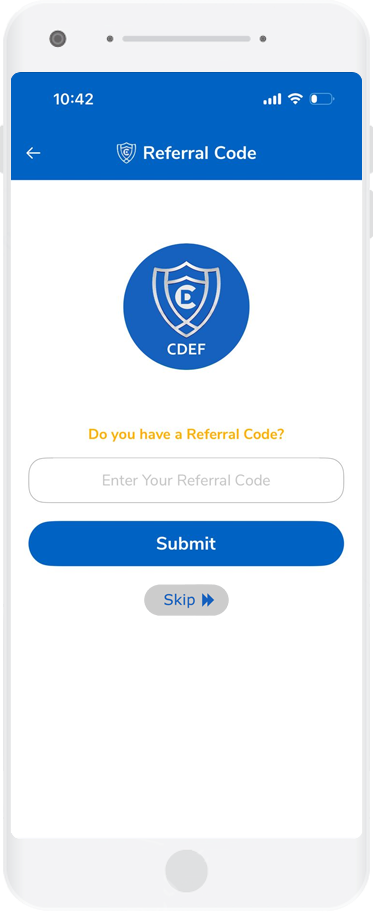
If you have a referral code, enter it in the provided field and tap on Submit.
If you do not have a referral code, you can simply tap on Skip to continue.
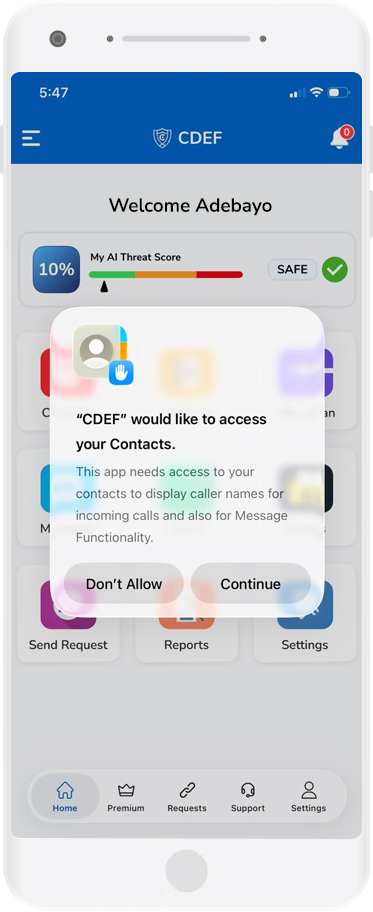
Contact permissions
Once you land on the homepage, you will be prompted to grant access to your contacts to enable core features of the app. This step ensures a more personalized and seamless experience.
You will have full control over your data, with flexible options to choose how you share your contacts:
- Share Selected Contacts – Allow access only to specific contacts of your choice.
- Share All Contacts – Grant access to your entire contact list for a more comprehensive experience.
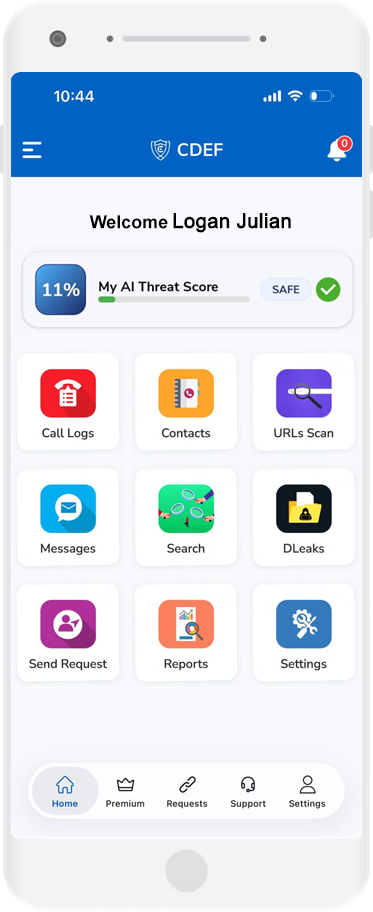
Once all steps are completed, you will be redirected to the app’s home screen/dashboard.
Your CDEF App is now successfully set up and ready to use.
You can now enjoy features such as calling, caller identification, and spam protection.