Support
The Support Section in the application allows users to raise support tickets and communicate directly with the support team regarding any issues they face while using the app.
Need help? Our Support Section makes it simple. Raise a ticket, track your requests, and communicate directly with our support team—all in one place, designed for speed, clarity, and convenience.
Stay informed with real-time updates and experience quick, reliable resolutions from a team that’s always ready to assist you.

Support
The Support Section in the application allows users to raise support tickets and communicate directly with the support team regarding any issues they face while using the app.
Need help? Our Support Section makes it simple. Raise a ticket, track your requests, and communicate directly with our support team—all in one place, designed for speed, clarity, and convenience.
Stay informed with real-time updates and experience quick, reliable resolutions from a team that’s always ready to assist you.
Accessing Support
- Users can access the Support section from the application menu. When the user taps on the Support option, they are presented with an option to Add Ticket.
Creating a Support Ticket
- When a user selects Add Ticket, a form appears where they can submit their issue.
The form contains the following fields:
User Details
- Name
- Phone Number
These details are auto-filled by the system and cannot be edited by the user.
2. Subject
The Subject field is a dropdown menu that allows users to categorize their issue. The available options include:
- Technical
- Premium
- Others
Users must select the most relevant category before submitting the ticket.
3. Message
- The Message section allows users to describe their issue in detail.
- Users can write an elaborated message explaining the problem they are facing in the application.
4. Submit
- Once all required details are filled, the user can tap Submit to create the support ticket.
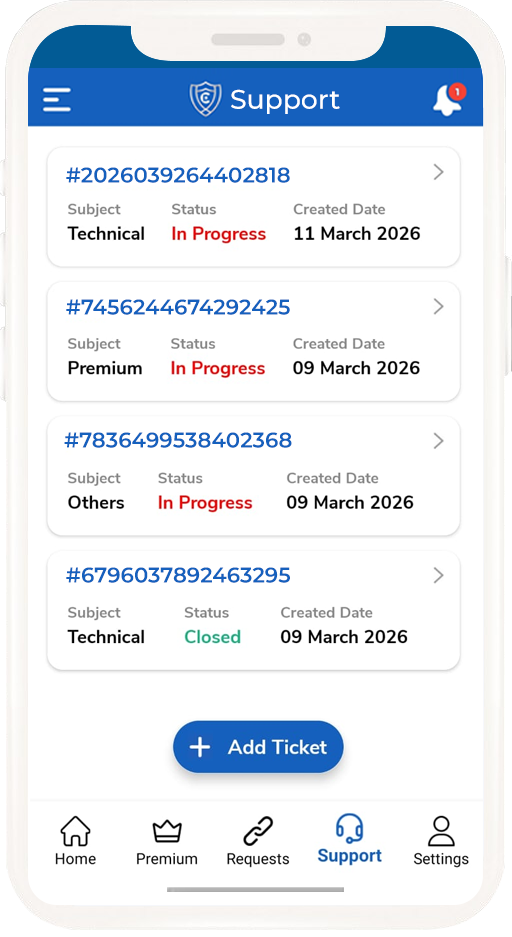
Ticket Overview
- Ticket Number – Automatically generated by the system
- Subject – The selected category of the issue
- Status – Current progress of the ticket
- Created Date – The date the ticket was submitted
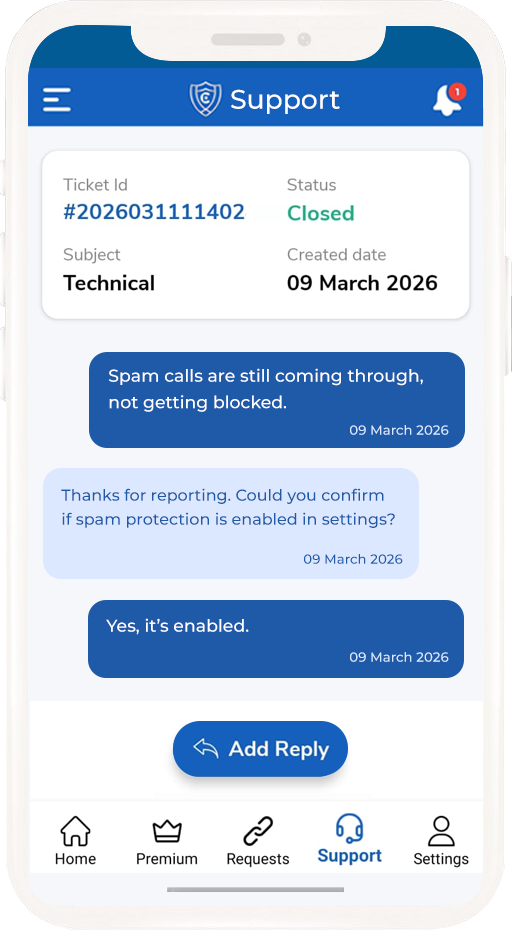
Chat with Support
- When the user taps on a ticket, they are taken to the ticket conversation page.
On this page: Users can chat directly with the support team.
- A blue reply box appears at the bottom of the screen
- Users can type and send messages regarding their issue.
- The support team can reply in the same conversation thread.
-
This allows both the user and the support team to communicate and resolve
the issue efficiently.